Delete a Pupil
Permanently remove a pupil from Tutonomi and understand what happens to their lesson history.
——— ••• ———
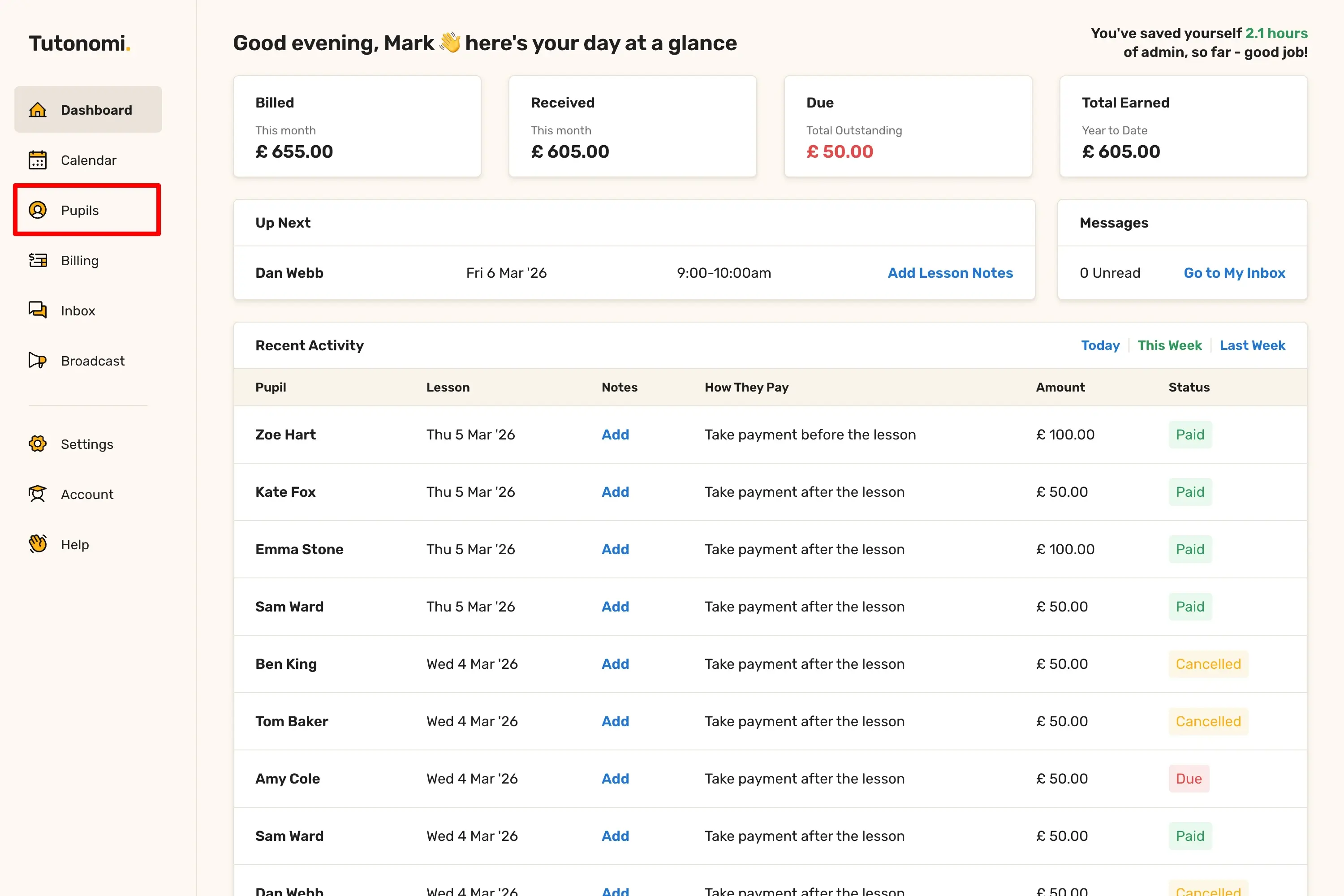
Step 1: Open your pupils list
From the left-hand menu, click Pupils.
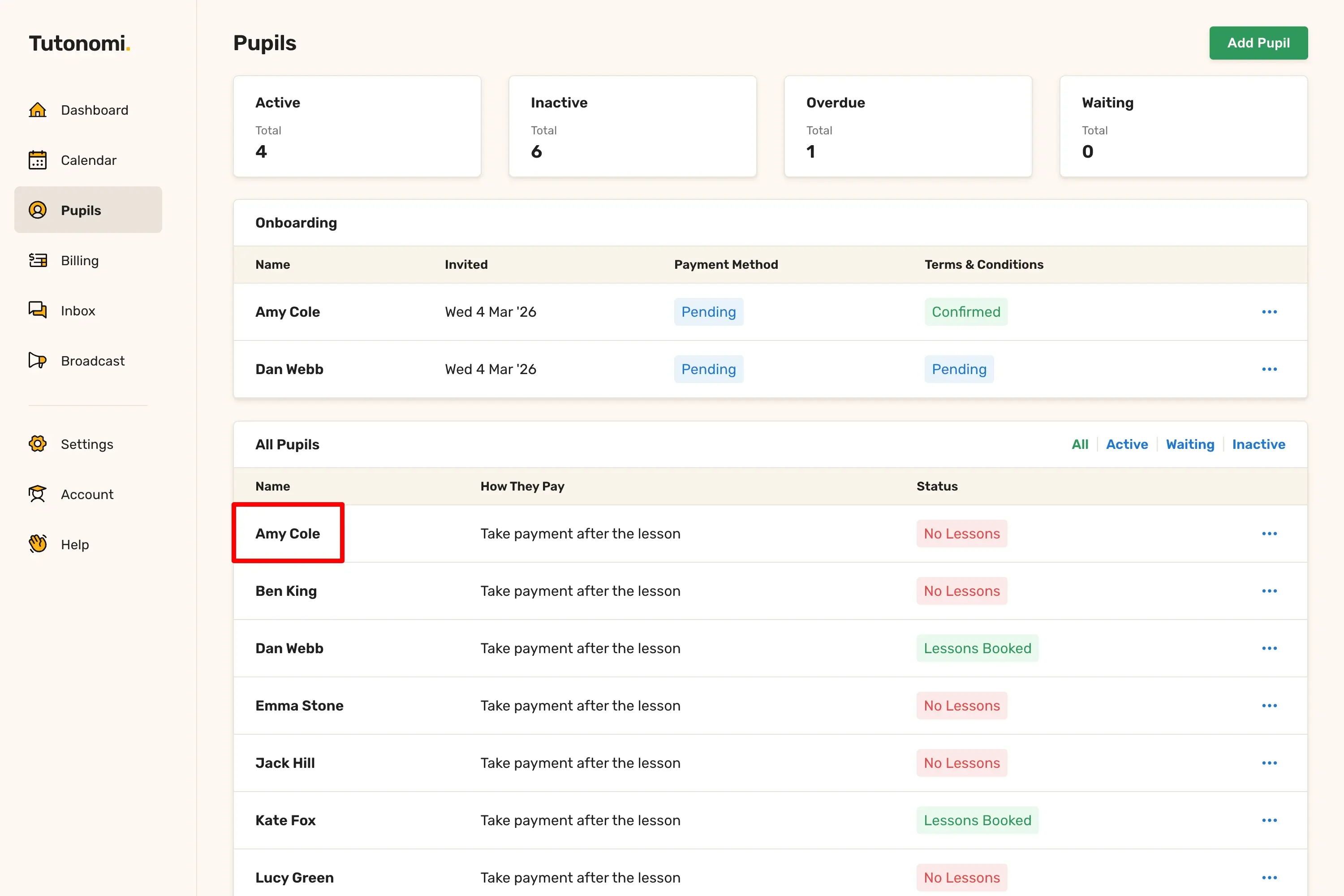
Find the pupil you want to remove and click their name to open their profile.
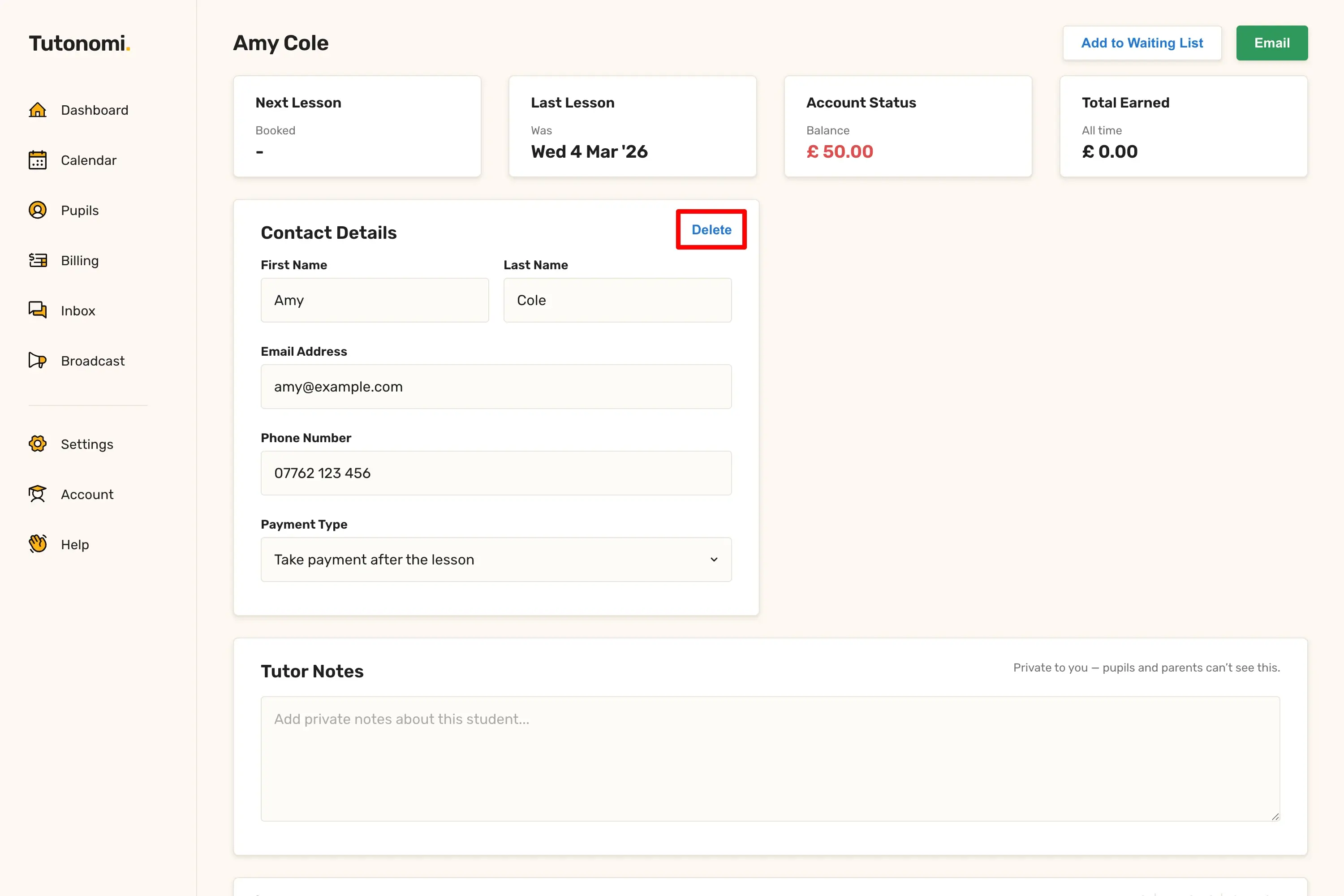
Step 2: Delete the pupil
In the Contact details section, click Delete in the top-right corner.
This will archive the pupil rather than permanently deleting them.
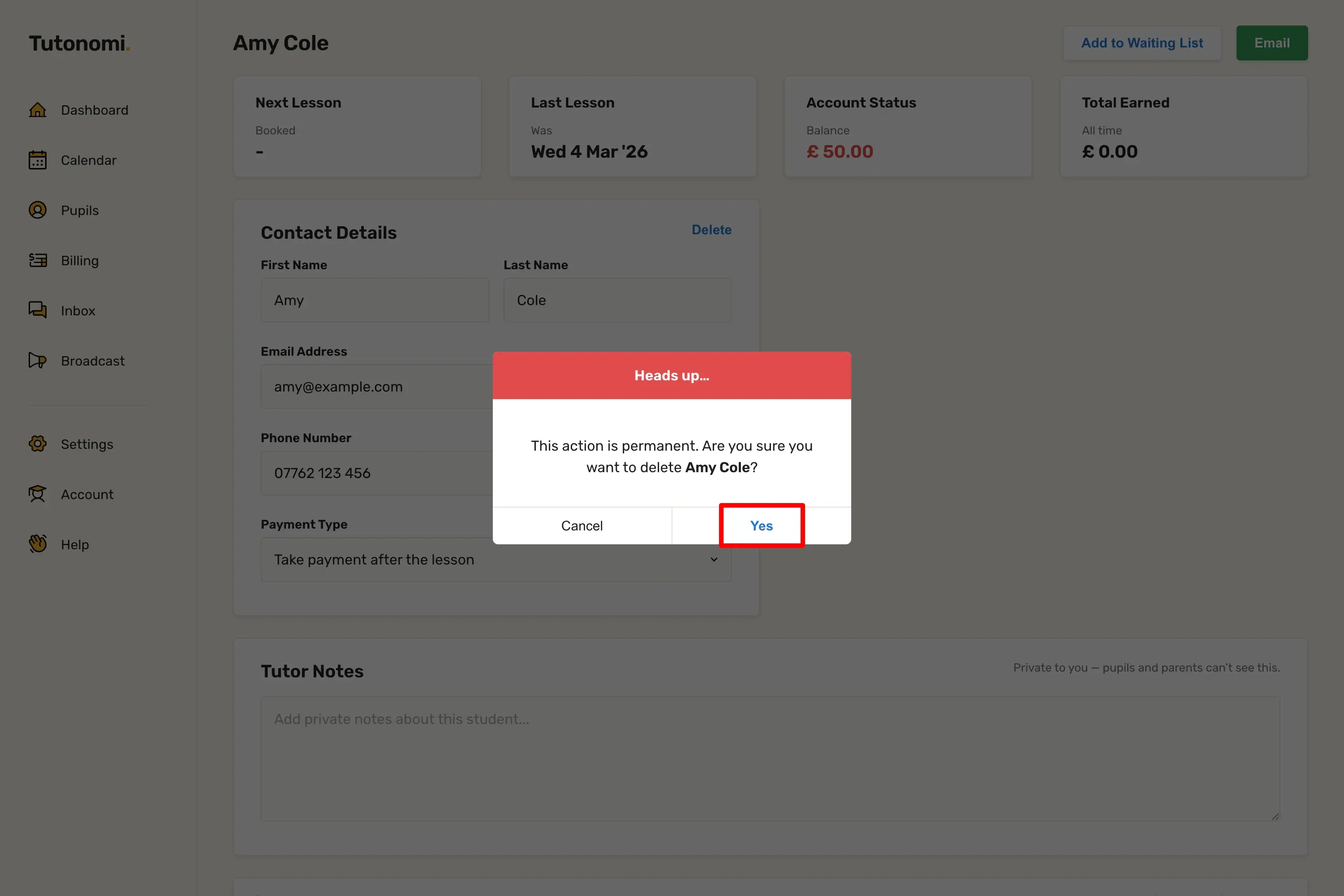
Click Yes to confirm that you want to delete the pupil.
What happens next
The pupil will no longer appear in your active pupils list
No new lessons can be booked for them
Their lesson and payment history is kept for your records
Deleted pupils can not be restored later.
Need a hand? 👋
If this hasn’t fully answered your question, we’re always here to help!
Send us a message and we’ll get back to you quickly — usually within an hour (9am-6pm UTC).
I simply love it
Saves me 5 hours a week
It's free!
I have more family time now
My schedule is crystal clear
I spend more time earning (or relaxing!)
Now I get paid on time, every time
I highly recommend this app!