Add Lesson Notes
Record notes for completed lessons for your own reference.
——— ••• ———
Step 1: Open the pupil’s lesson notes
From the left-hand menu, click Pupils and open the pupil’s profile.
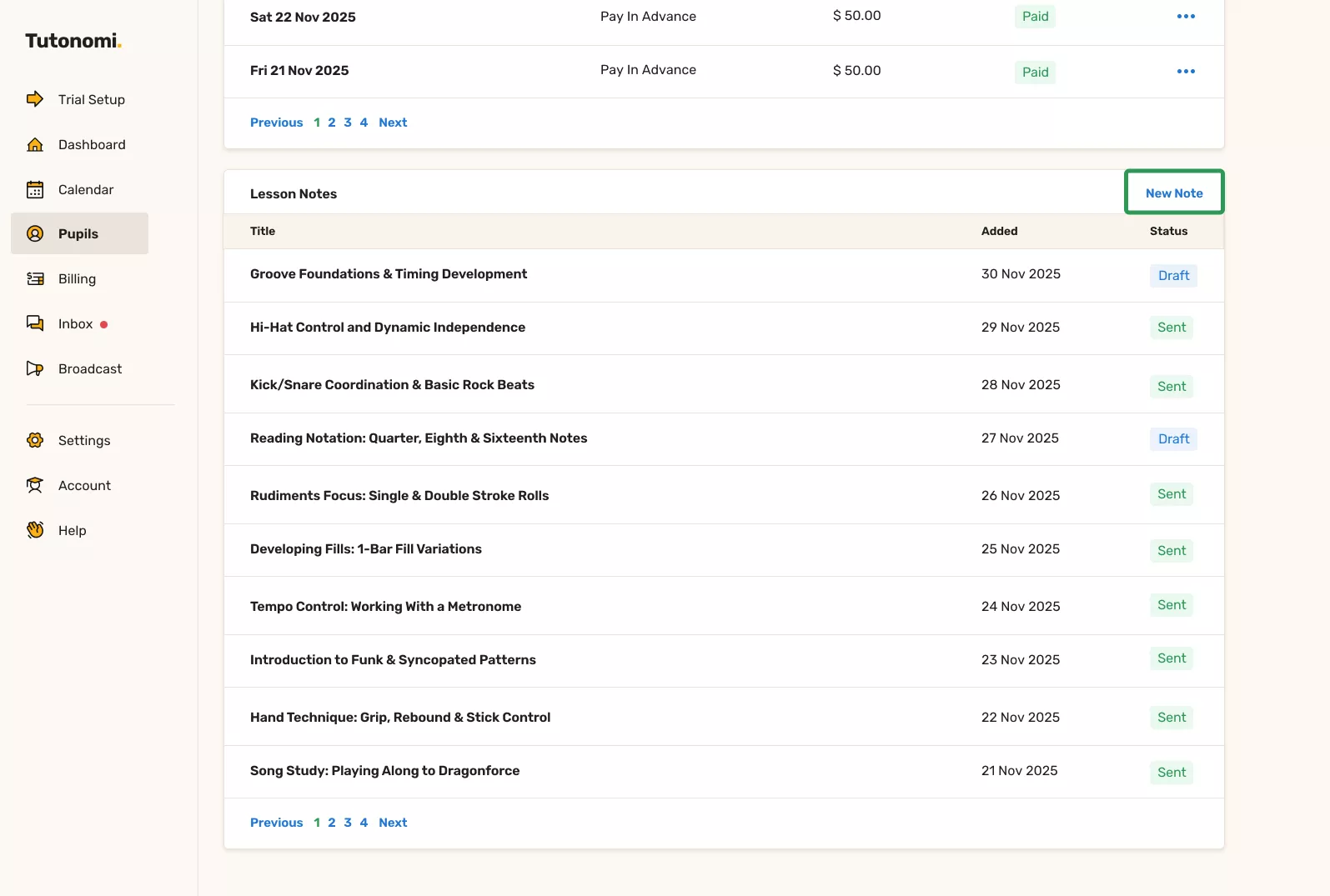
Scroll to the Lesson notes section and click New note.
Step 2: Write your lesson note
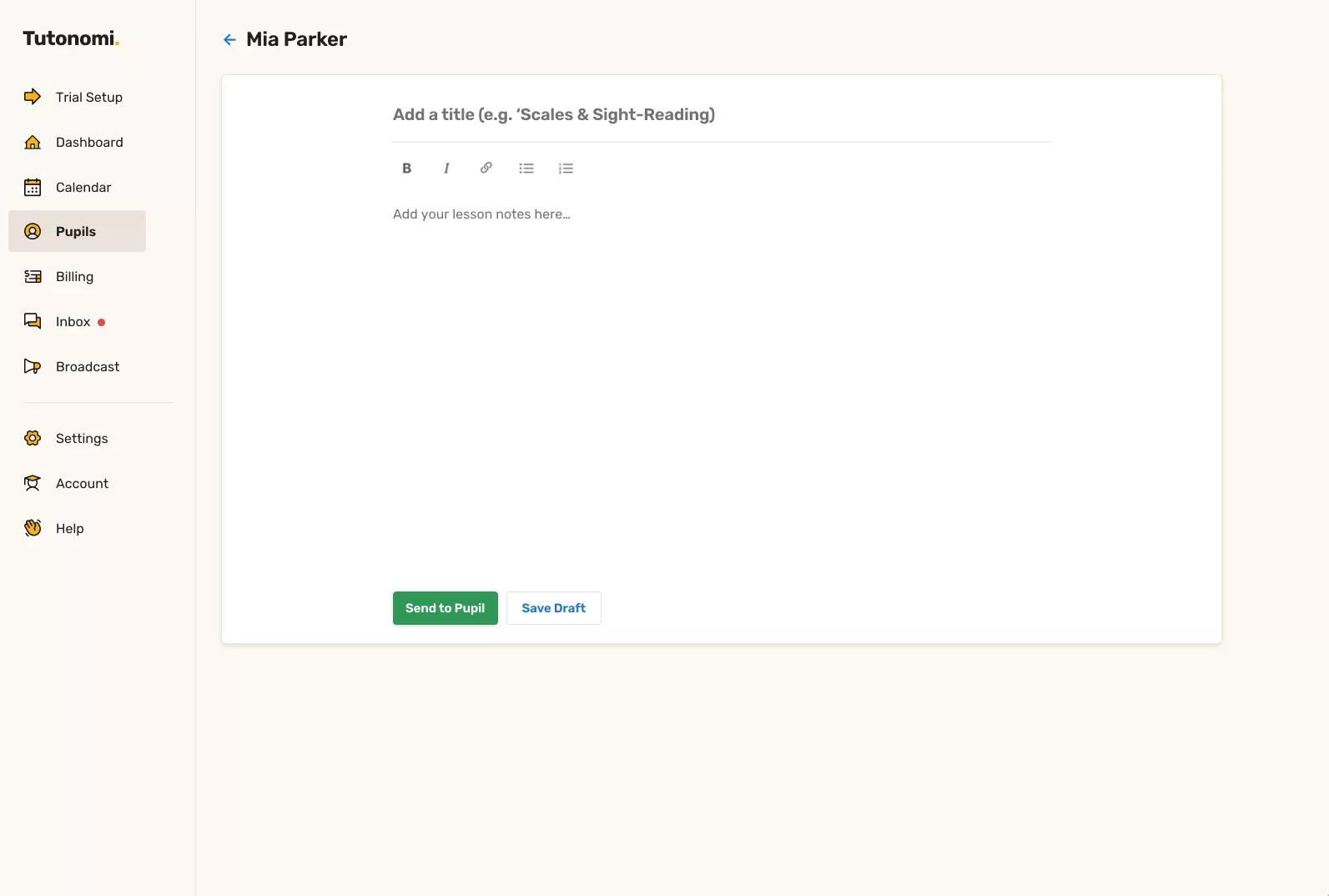
Add a clear title (for example, what you worked on in the lesson).
Then write your lesson notes in the editor below. You can format text and add links if needed.
Step 3: Save or send the note
Click Save draft to keep the note private for now
Click Send to pupil when you’re ready to share it
Once sent, the note will be emailed to the pupil or parent and saved to their profile.
Good to know
Draft notes are only visible to you
Sent notes can’t be edited, but they remain available for reference
Lesson notes help parents and pupils stay aligned between sessions
Need a hand? 👋
If this hasn’t fully answered your question, we’re always here to help!
Send us a message and we’ll get back to you quickly — usually within an hour (9am-6pm UTC).
I simply love it
Saves me 5 hours a week
It's free!
I have more family time now
My schedule is crystal clear
I spend more time earning (or relaxing!)
Now I get paid on time, every time
I highly recommend this app!